







I’m going to make a bet.
You’re currently using your Mac trackpad wrong.
It’s not your fault. Apple, in its infinite but occasionally baffling wisdom, took the single best gesture for productivity and ergonomics and buried it deep inside a menu where nobody thinks to look. They hid it like it’s a dirty secret.
But once you switch, you can never go back.
If you spend your days highlighting text, moving browser windows, or dragging files from one Finder column to another, your index finger is taking a beating. That constant “press-click-hold-slide” motion? It’s a recipe for repetitive strain. It’s slow. It’s clunky.
Enter the 3-Finger Drag.
What is the 3-Finger Drag?
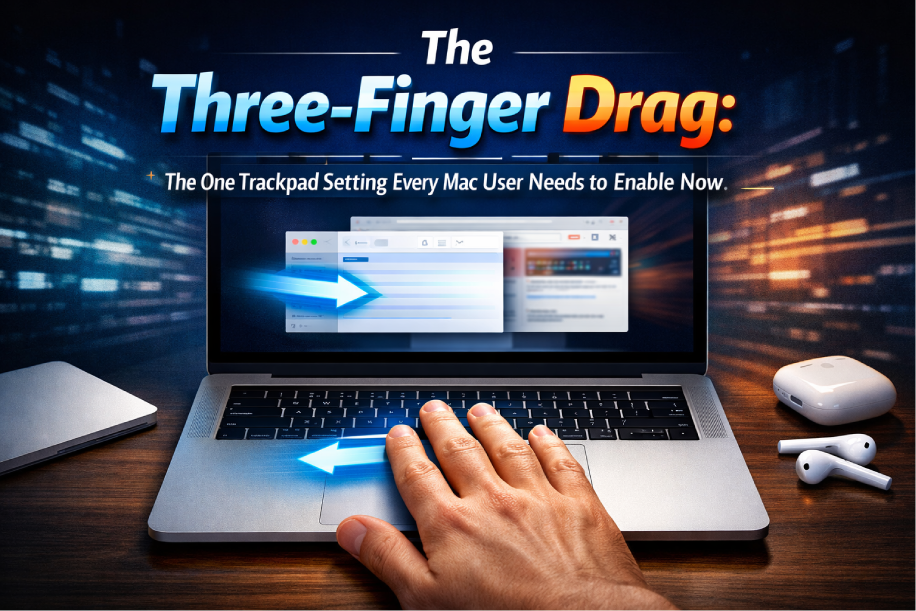
The 3-Finger Drag is a specific macOS trackpad gesture that allows you to move active windows, select text, and rearrange files simply by gliding three fingers across the surface, eliminating the need to physically depress the trackpad.
Think about that. No clicking. No pressure. Just sliding.
It turns your glass trackpad into something that feels more like a touchscreen. When you need to grab a window, you don’t stiffen your hand to maintain pressure on the clicker. You just graze the surface with three fingers and the window follows you.
It’s buttery smooth.
Prerequisites
Before we fix your workflow, let’s make sure you have the hardware. You don’t need much.
- A Mac computer (MacBook Air, Pro, or a desktop Mac).
- A Multi-Touch Trackpad (Either built-in or the external Magic Trackpad).
- macOS 10.11 El Capitan or later (Basically, any Mac from the last decade).
Why Is This Not Default?
This used to be a standard setting right in the main Trackpad menu.
Then, somewhere around 2015, Apple moved it. They shoved it into the Accessibility settings.
Why? Maybe they thought it conflicted with other gestures. Maybe they wanted to simplify the out-of-the-box experience for newbies. Who knows. But by moving it, they turned a productivity staple into a “hidden feature.”
If you talk to any veteran Mac user—someone who has been pushing pixels since the Snow Leopard days—they likely use this. It’s not just about speed; it’s about saving your tendons.
The Friction Comparison
Let’s look at the physical difference.
| Action | Standard Click-and-Drag | 3-Finger Drag |
|---|---|---|
| Physical Effort | High (Requires sustained pressure) | Low (Zero pressure required) |
| Precision | Medium (Pressure can cause slipping) | High (Finger tips only) |
| Risk of RSI | Elevated (Tension in forearm/finger) | Minimal |
| Speed | Slower (Two distinct actions) | Instant (One fluid motion) |
See the difference? One requires you to fight the hardware. The other works with it.
How to Enable 3-Finger Drag (Step-by-Step)
If you are on macOS Ventura, Sonoma, or Sequoia, Apple overhauled the System Settings. Things aren’t where they used to be. Follow these steps exactly to dig this setting out of the abyss.
## Step 1: Open System Settings
Click the Apple logo in the top-left corner of your screen. Select System Settings (or System Preferences if you’re on an older OS).
## Step 2: Navigate to Accessibility
Here is where people get lost. Do not go to the “Trackpad” menu. That would make too much sense, right?
Instead, scroll down the sidebar and click on Accessibility.
## Step 3: Find Pointer Control
In the main window, look for the section labeled “Motor.” Under that, click on Pointer Control.
(On some older macOS versions, this might be labeled “Mouse & Trackpad”).
## Step 4: Access Trackpad Options
You will see a button usually located next to your mouse/trackpad selection labeled Trackpad Options…. Click that little button.
## Step 5: Activate the Drag
A small modal window will pop up.
- Toggle the switch for “Use trackpad for dragging” to the ON position.
- Change the “Dragging style” drop-down menu to “Three Finger Drag”.
- Click OK.
Boom. You’re done.
The “Re-Learning” Curve
I won’t lie to you. The first hour is going to feel weird.
Your muscle memory is wired to click. You will catch yourself trying to click and drag with one finger, or maybe you’ll try to swipe spaces and accidentally grab a window instead.
Give it 24 hours.
The “Lift and Slap” Technique
One massive advantage of this setting is how it handles running out of trackpad space.
When you click-and-drag physically, if you reach the edge of the trackpad, you have to keep holding the click down with one finger while frantically swiping with another to scoot the cursor over. It’s awkward.
With 3-Finger Drag, you just lift your fingers. The operating system holds the “click” for a split second. You can lift your hand, move it back to the center of the pad, and put your three fingers down again to keep dragging. It’s like clutching a manual transmission.
What About My Other Gestures?
You might be worried about conflicts.
“Wait, doesn’t three fingers swiping up show Mission Control?”
Yes. But here is the nuance:
- Three fingers vertical (up/down): Still Mission Control / App Expose.
- Three fingers horizontal (left/right): Switching full-screen apps (usually 4 fingers by default, but this setting forces it to 4 fingers).
The system is smart enough to know the difference between a quick “swipe” and a deliberate “drag.” If you hover over a window header and move three fingers, it grabs the window. If you do a ballistic swipe up, it triggers Mission Control.
It rarely misfires.
Why You Should Do This Today
Ergonomics isn’t sexy. Nobody wakes up excited to prevent carpal tunnel.
But if you work on a laptop for eight hours a day, micro-movements add up. The force required to depress a trackpad, even a high-tech haptic one, creates tension that travels right up your forearm.
I switched to this setting seven years ago. A few months back, I got a new MacBook Pro and forgot to flip the switch immediately. Within two hours, the top of my hand ached.
Stop fighting your computer.
Go to Accessibility. Turn it on. Your wrist will thank you.
Frequently Asked Questions
Does 3-finger drag interfere with switching desktops?
It changes the gesture slightly. When you enable 3-finger drag, the gesture to swipe between full-screen apps or desktops usually changes to a four-finger swipe to avoid conflicts.
Why can’t I find this setting in the Trackpad menu?
Apple considers this an Accessibility feature now, presumably for users who have difficulty maintaining physical pressure on the trackpad. It has been moved to Accessibility > Pointer Control > Trackpad Options.
Does this work on the Magic Trackpad for desktop Macs?
Yes, it works identically on the standalone Magic Trackpad and the built-in MacBook trackpads.
Can I still click to drag if I enable this?
Yes. Enabling 3-finger drag does not disable the standard click-and-drag functionality. You can use both methods simultaneously.